
Pin Manager Setup
Step 4 - Open the Pin Manager. Then, click on the PORTA pin 4 (RA4) Output blue lock symbol, which is connected to the D2 LED. Once selected, it should turn green. This adds this RA4 I/O pin to the project. It should look like the picture below when completed:

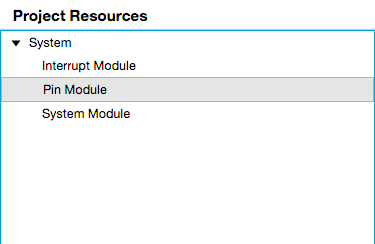
Step 5 - Close the Pin Manager and then click on the Pin Module selection in the Project Resources section.
The RA4 pin will be made an output pin and control the LED. Click on the Output box to make the pin an output and uncheck the WPU and Analog boxes. Then, change the RA4 pin name to "LED _D2".
