
Entering a Design
Once a Libero project has been created (or opened), a design needs to be entered.
We will use the Design Flow window to manage most of the flow. The Design Flow window has multiple tabs. You can switch between these tabs by clicking the tab name at the bottom.

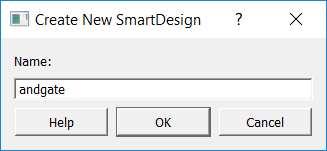
1) In the Design Flow window, double-click Create SmartDesign and name your design “andgate” then click OK. This opens the SmartDesign Canvas.
2) Select the Catalog tab in the Design Flow window and expand the Macro Library section.
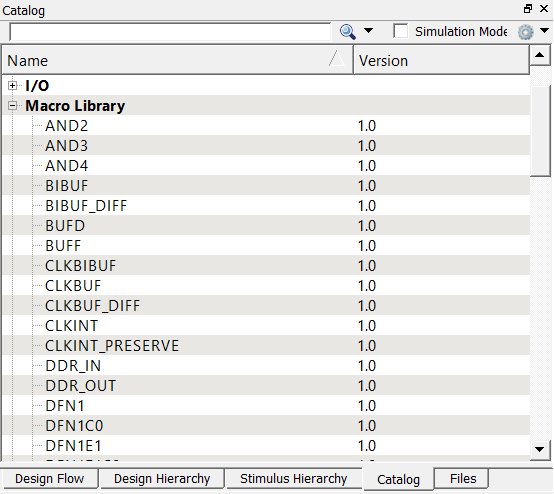
3) Drag the AND2 gate from the Catalog onto the blank SmartDesign Canvas on the right.
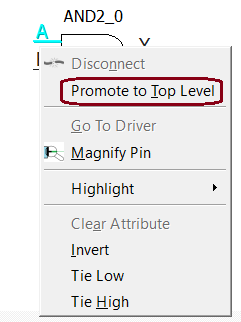
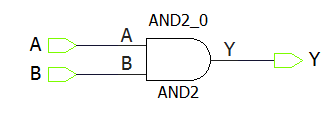
4) Use the mouse to select A and then right-click to bring up the menu. From the menu select Promote to Top Level, this creates an external connection on the device that we will connect to a switch. Repeat for B and Y.
5) When you have completed this you should have the following view:
6) Click the Generate Component button on the top of the canvas to generate the design. 
7) Confirm the message “'andgate' was successfully generated” appears in the Libero SoC Log tab.

8) Select the Design Hierarchy tab and click the Build Hierarchy button.
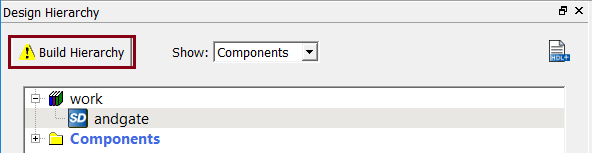
9) “andgate” appears in bold font on the Design Hierarchy tab indicating that it is the root level.